

Documentation Index
Fetch the complete documentation index at: https://relevanceai-docs-tsp-1093.mintlify.app/llms.txt
Use this file to discover all available pages before exploring further.
Overview
Tools enable your agent to go beyond simple conversation by performing actions such as searching the web, accessing databases, sending emails, or interacting with other systems. When properly configured, tools transform your agent from a conversational interface into a powerful digital assistant that can take meaningful actions on behalf of users.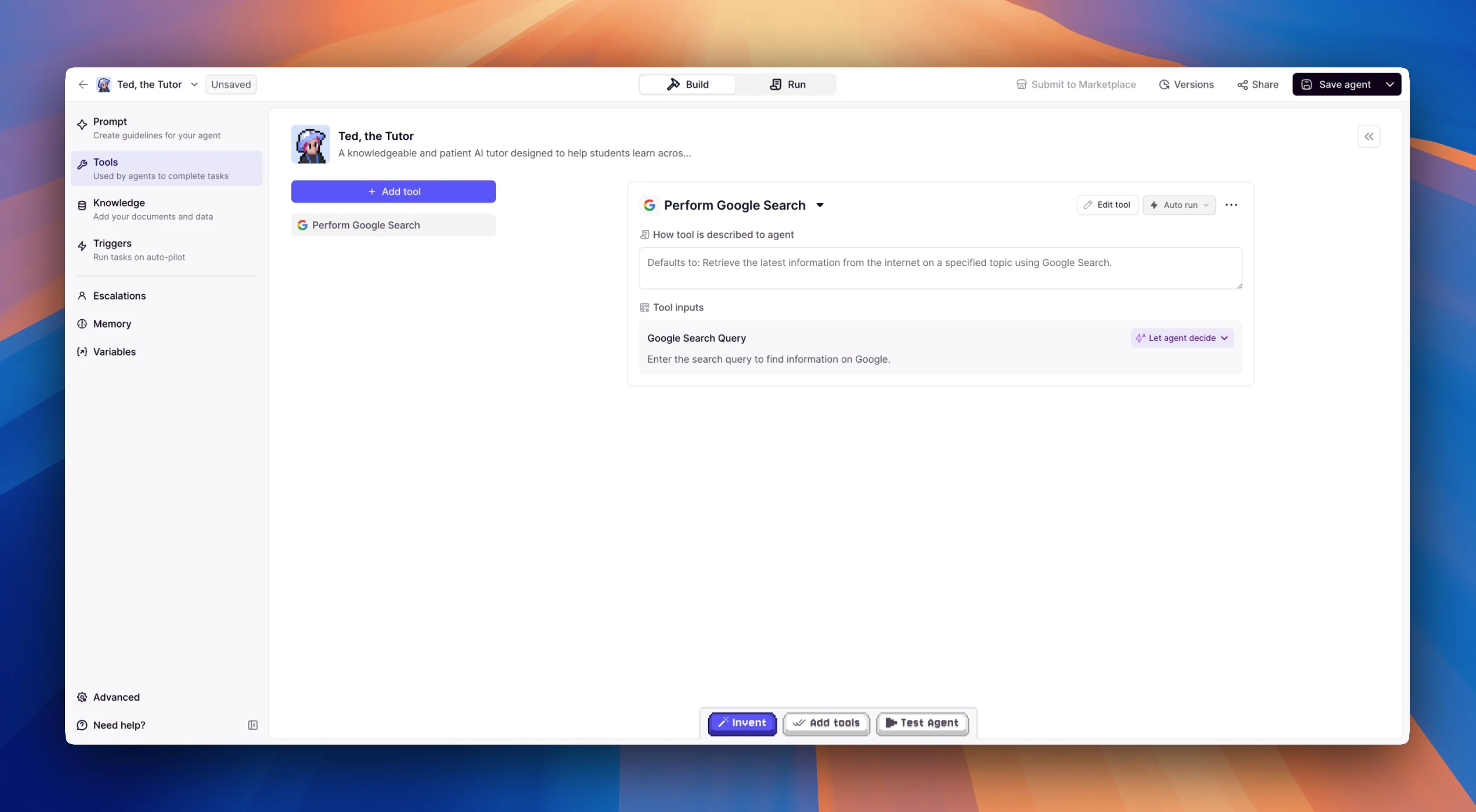
Adding Tools to Your Agent
In the Agent Builder interface, navigate to the Tools section to begin enhancing your agent’s capabilities:- Select from pre-built tool templates that cover common use cases
- Add custom tools you’ve created under the
Add new tooloption - Configure each tool’s usage settings based on your requirements
Tool Input Configuration Options
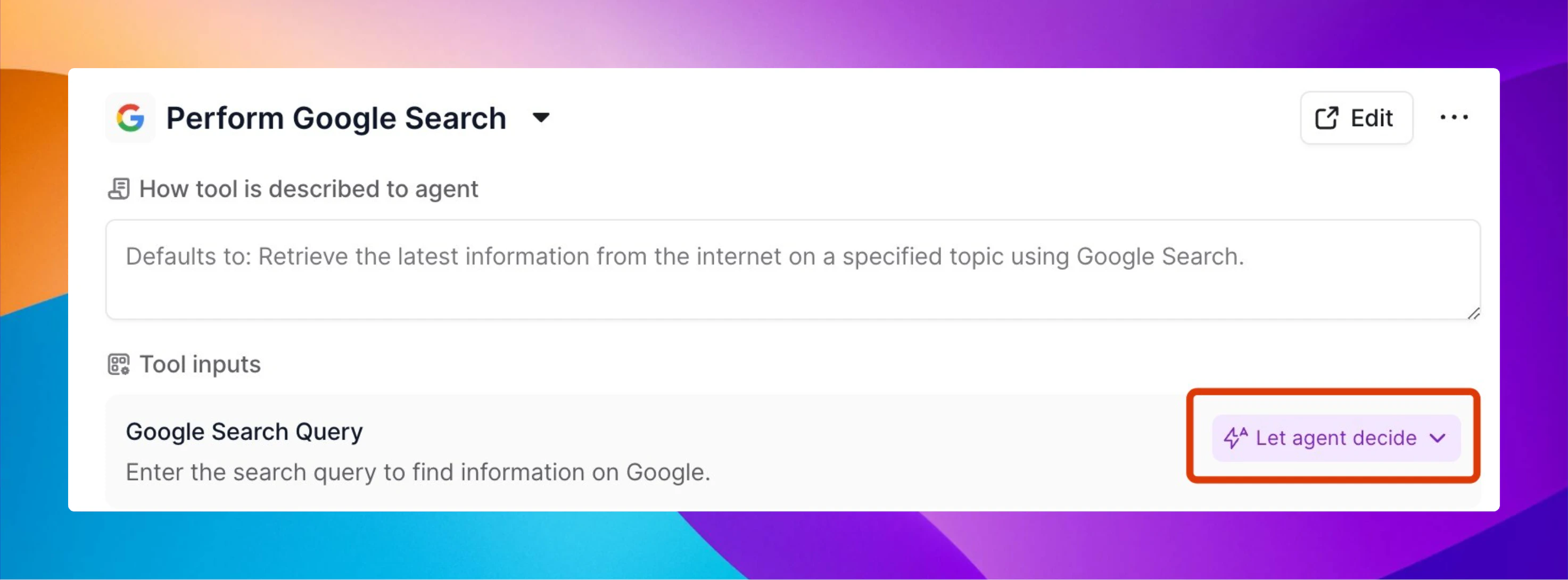
Let agent decide
This balanced approach gives your agent the flexibility to determine how the Input is entered based on context. The Agent will use its judgement about what Inputs to give your Tools. Best for: A mix of tool types where you want to get things up and running quickly.Set manually
This option allows you to explicitly specify the Inputs for each Tool or action. You have full control over which settings are used for your tools. Best for: Scenarios where strict oversight or compliance is needed, and you want to minimize any ambiguity in approval processes.Tool output
This option allows you to select the outputs from a previous Tool run by the Agent.Guiding Your Agent’s Tool Usage
For optimal results, provide your agent with clear guidance about how and when to use its tools: Core Instructions: Include specific directions about tool usage in your agent’s core instructions. For example:- When to prioritize certain tools over others
- How to interpret and present tool results
- What circumstances warrant tool use versus simple conversation
Best Practices for Tool Implementation
- Start Simple: Begin with a few essential tools before adding more complex capabilities
- Test Thoroughly: Verify that each tool works as expected in various scenarios
- Monitor Usage: Review how your agent is using tools in real conversations to identify opportunities for improvement
- Refine Gradually: Adjust tool configurations and instructions based on actual usage patterns
- Combine Tools Strategically: Create powerful workflows by combining multiple tools in sequence
Common Tool Categories
While the specific tools available depend on your implementation, common categories include:- Information Retrieval: Search engines, knowledge bases, document repositories
- Communication: Email, messaging, notifications
- Data Processing: Analysis, transformation, summarization
- Integration: Connecting with external systems and APIs
- Content Creation: Generating text, images, or other media